23.11 Splitter views
A splitter window holds two or more views of a document inside of it. There are two kinds of splitter windows, the dynamic splitter window and the static splitter window.
A dynamic splitter window is a window such as you have in Microsoft Word or in Visual Studio that the user can choose to split or not to split. Usually a dynamic splitter window has the property that if you resize it, the pane on the right-hand side will change size, but the pane on the left stays the same width. A static splitter window is a window that is always split. With a static splitter window the programmer is better able to control the ratio of the size of the two panes. If you don't want to see the split, in a static splitter window, you can drag the split-divider over to one side, but if you go and click there, you'll find the divider bar is still waiting there.
The author designed the Pop Framework so you can build both. In the Adding a Static Splitter section below we show how to change from one build to the other. Our default build uses dynamic splitter, which you can activate with Window | Split.
In understanding the role of splitter windows we need to understand their place in the window tree. Ordinarily a CView
is the immediate window child of its frame. In the case of MDI, which is what we're focusing on, the frame is a ChildFrame
object (which is an instance of the CMDIChildWnd
class). In the case of SDI, the frame would be a MainFrame
object which is an instance of the CFrameWnd
class. But in any case, the usual situation is that your view is right inside the frame, in terms of the windows tree.
When we add a splitter window, it gets in between the frame and view. Here's a picture showing the two kinds of window trees.
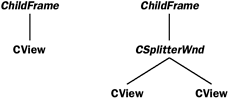
Let's describe how to add either kind of splitter. 'Dynamic' sounds more exciting and complicated than 'static,' but in some ways the static splitter windows are more powerful, and they're slightly harder to program. Let's explain the easier case first.
Adding a dynamic splitter
Add a CSplitter _cSplitterWnd data field to ChildFrame
in ChildFrm.h. Change the CChildFrame::OnCreateClient
code in ChildFrm.cpp to have a single line as in the following.
BOOL CChildFrame::OnCreateClient(LPCREATESTRUCT lpcs, CCreateContext*
    pContext)
{
        /* When adding a splitter, be sure to comment out the base
            class code. */
        // CMDIChildWnd::OnCreateClient(lpcs, pContext);
        /* We pass the CSplitterWnd::Create call the "this" pointer,
            the max number of rows (1 or 2), the max number of
            columns (1 or 2), and an (x,y) size at which you want a
            pane to just disappear, the pContext variable, and a flags
            variable. */
    return _cSplitterWnd.Create(this, 1, 2, CSize(20, 20), pContext,
        WS_CHILD | WS_VISIBLE | SPLS_DYNAMIC_SPLIT); /* The default
            includes | WS_HSCROLL | WS_VSCROLL in the sixth
            argument, but I don't want scrollbars here. */
}
And that's it! If you rebuild now, you've got a working dynamic splitter window! If you use the Window | Split selection, you can split any of your views in two.
But there is one more consideration. It may be that you want the two panes of the split view to automatically be different. To do this, you could put some code like the following into your game's override of initializeView(CPopView*
pview), so as to make the views in the two panes be different. When the window is not split, your default behavior will be that of the 'left pane.'
CSplitterWnd* csplitter = (CSplitterWnd*)(pview->GetParent());
if (pview == csplitter->GetPane(0,0) ) //we're the left, main view.
{
    //Change the view settings the values you want in the left pane
}
else //we're the right, subsidiary view.
{
    /* Change the view settings to the values you want in the right
        pane. */
}
You might also want to override the cGame
child's initializeCritterViewer(cCritterViewer
*pviewer)
with a similar kind of switch on pviewer->_pownerview.
Adding a static splitter
If you use a static splitter window, you have the ability to make your window keep a fixed layout no matter what size it is. The idea is to allocate some fixed proportion, like 0.75 of the window for the left pane and give the rest to the right pane. Of course the user can still move the splitter bar back and forth, but whenever we resize the frame window we'll go back to our standard proportions.
Look for the following block of code at the top of the Childfrm.h file. Comment STATIC_SPLITTER in, set the Build | Set Active Configuration . . . to select the Release option and rebuild.
/* Comment STATIC_SPLITTER out to have a dynamic (user selectable)
    splitter window rather than a static (automatically present)
    splitter window. If we have STATIC_SPLITTER, then we use
    LEFT_PANE_PERCENT to specify how much of the width of the child
    frame window is devoted to the left pane. The PERCENT macro is
    defined in stdafx.h to convert the 0 to 100 range to 0.0 to 1.0. */
//#define STATIC_SPLITTER
#define LEFT_PANE_PERCENT PERCENT(50)
Run the new *.exe and notice that when you resize the window, the left splitter pane always takes up 50 percent of the screen. Change the LEFT_PANE_PERCENT number to 75 and build again.
What makes this a little tricky is that a static splitter window is not fully initialized until you've both called CSplitterWnd::CreateStatic
and repeatedly called CSplitterWnd::CreateView
to put valid CView
objects inside its panes. What with all the things the MDI framework does to initialize itself, you will hit the ChildFrame::OnSize
method three or four times before you've managed to finish executing the ChildFrame::OnCreateClient
code that initializes the _cSplitterWnd. So you need a BOOL _splittercreated
field to keep you from trying to set the sizes of the _cSplitterWnd
's panes before they're fully ready.
If you look in the Pop ChildFrm
code, you'll find the following two things.
First, there is a CSplitter _cSplitterWnd data field of ChildFrame
in ChildFrm.h, and a BOOL _splittercreated field as well. The CChildFrame
constructor initializes _splittercreated to FALSE. Second, the CChildFrame::OnCreateClient
method in ChildFrm.cpp is written to make a call to _cSplitterWnd.CreateStatic, three calls to _cSplitterWnd.CreateView, and a call to _cSplitterWnd.RecalcLayout. See the code in childfrm.cpp and its comments for details.
As in the case of the dynamic splitter, you may want to change your CPopView::OnCreate
to initialize the views differently according to which pane of the splitter window they appear in.
Finally, if you want to change the behavior of the relative sizes of the panes when you resize the window, you can tweak the CChildFrame::OnSize
method a bit further.

|


